
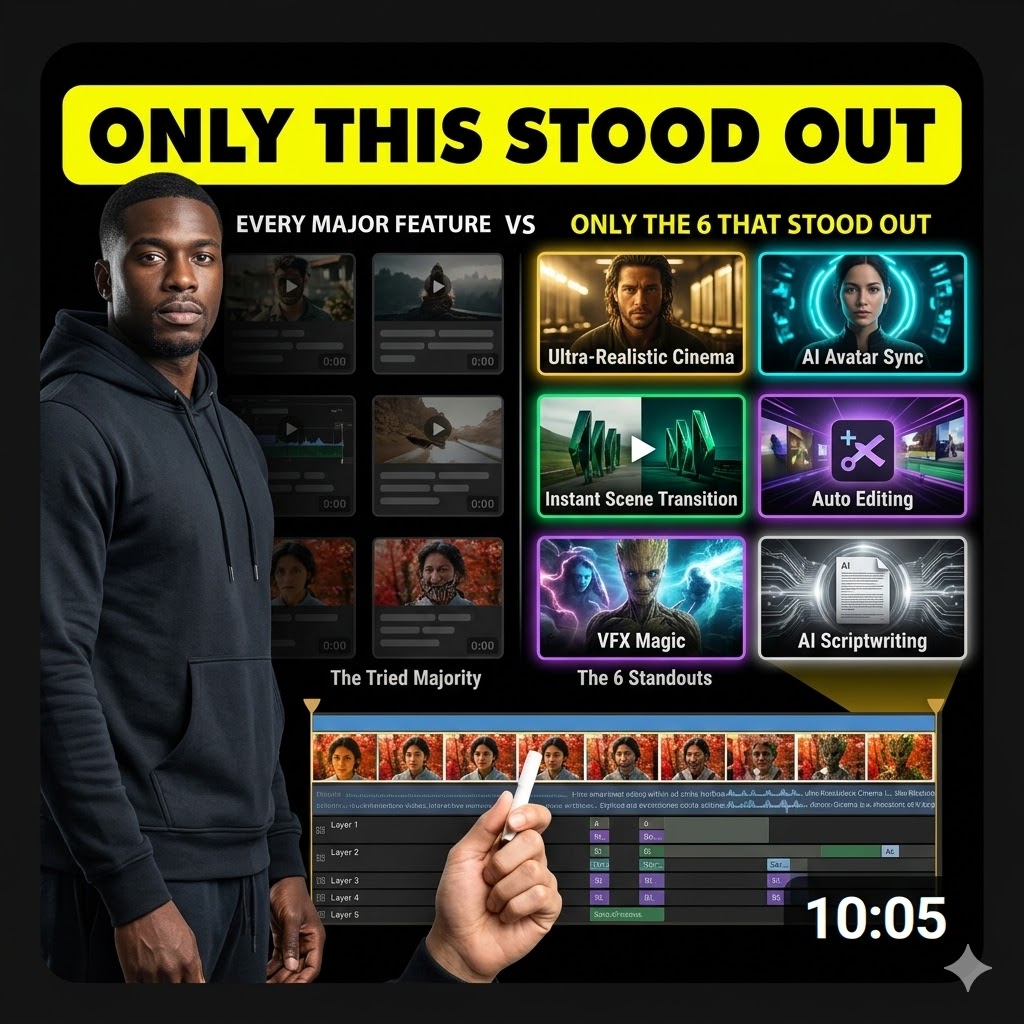
Most Creators Are Only Scratching the Surface of What AI Video Can Do
6 AI Video Creation Features That Unlock 84% More Control Over Your Final Output
If you have only been making AI video content by typing text prompts into a generator, you are barely using 16% of what the technology can actually do for you.
That number is not a guess — it comes from five solid years of working inside AI video as both a researcher and a working creator, watching the tools evolve from clunky experiments into something that can genuinely rival professional film production.
The gap between creators who produce forgettable AI content and creators who produce jaw-dropping cinematic scenes is not talent, money, or expensive software.
It comes down to six specific AI video features that most people either do not know exist or never take the time to learn properly.
Once you understand these six features and how they layer on top of each other, your output will shift completely — from random clips that look like machine noise to coherent scenes that feel like actual films.
This article walks you through all six features one by one, with enough detail so you can visualize exactly how each one works, even without a single image on the page.
Every tool, platform, and model mentioned in this article is real and available for you to use today.
Let us get into it.
We strongly recommend that you check out our guide on how to take advantage of AI in today’s passive income economy.
Table of Contents
Feature 1: Image to Video — The Foundation Every Other Feature Builds On
Why Uploading a Reference Image Changes Everything About Your Output
The first core AI video feature is image to video, and it is the most straightforward of the six — but it is also the most important one to master because every other feature you will read about in this article builds directly on top of it.
The way image to video works is simple enough to understand in one sentence: you upload a still reference image into your AI video generator, and that image becomes the exact first frame of the video clip the AI produces for you.
You are not guessing at what the opening of your scene will look like — you are locking it in before the AI generates a single second of footage.
On top of that starting image, you still enter a text prompt that tells the AI what should happen inside the scene, which direction the motion should move, and what the overall mood and atmosphere of the clip should feel like.
Without an image reference, you are handing control over to the AI completely, which usually means random visual results that rarely match what you actually had in your head.
With an image reference, you control the composition of the frame, the exact color tone of the scene — whether that is a bright golden-hour warmth or a cold desaturated night scene — and the specific visual style from start to finish.
This level of control also extends directly to your characters.
If you have a character sheet — a flat design reference showing your character’s face, outfit, body shape, and details from multiple angles — you can upload that into an AI image generator like Midjourney or Adobe Firefly alongside an environment reference image, write a prompt that combines both elements, and generate a series of consistent character images placed inside different environments.
Once you have those consistent character images ready, animating them with image to video becomes a clean, repeatable workflow rather than a chaotic guessing game.
Consistency across different shots is what makes your AI video project feel like a real film instead of a random montage of disconnected clips.
Feature 2: Multi-Shot Generation — Building Sequences Instead of Single Clips
How to Plan Camera Angles, Pacing, and Story Beats Inside a Single AI Generation
The second major AI video feature that separates working creators from frustrated ones is multi-shot generation, and it is the feature that begins to make AI video creation feel like actual filmmaking.
Standard AI video generation gives you one scene per output — a single continuous clip that shows one thing happening from one camera angle at one pace.
Multi-shot generation changes that completely by allowing you to generate multiple distinct shots inside the same video clip output, essentially letting you plan an entire sequence of shots rather than building everything one disconnected clip at a time.
You can define different camera angles across the sequence — a wide establishing shot, then a medium shot on your character, then a close-up on a hand reaching for an object — and control how long each individual shot lasts before the next one appears.
The engine that drives multi-shot generation is your prompt writing, and this is where most people get it wrong by writing too vaguely.
Inside your prompt, you need to describe each specific shot that should appear, what is happening inside that shot, and what the transition between shots should feel like.
Adding timestamps to your prompt — for example, specifying that a particular shot should appear at the 4-second mark and cut to the next at the 9-second mark — gives the AI even more precise guidance and dramatically improves the consistency of your output.
If you want to level up your multi-shot AI video workflow even further, use storyboards as your image references instead of single character images.
A 12-panel storyboard — which you can generate yourself using a tool like GPT-4o with image generation or Ideogram — gives the AI a visual map of exactly which shots you want in which order, what each frame should look like, and how the visual storytelling should flow from one moment to the next.
When you combine a storyboard reference with your character sheets and a detailed multi-shot prompt, AI video models like Kling 3.0 or Wan 2.1 do a remarkably good job of following your direction and producing sequences that actually hold together as a coherent piece of visual storytelling.
Feature 3: Start-to-End Frame Animation — Taking Full Control of Motion
Using Two Images to Direct Exactly How Your Scene Moves From Opening to Close
The third core AI video feature that most creators overlook is start-to-end frame animation, and it is the one that gives you the most precise control over motion without needing any motion capture equipment or professional camera rigs.
The concept is straightforward: instead of uploading just one reference image for the opening frame of your video, you upload two — one image for the exact first frame and one image for the exact last frame — and the AI figures out all the motion that should happen in between.
This means you are no longer hoping that the AI will organically move the camera or transform your characters in a way that works for your story.
You are defining the beginning state and the ending state, and the AI is responsible for generating a believable, visually smooth path between those two keyframes.
For character transformation scenes — where a character changes appearance, shifts position, or moves across the environment — start-to-end frame animation produces results that feel intentional and controlled rather than random.
For camera movement, you can create motion that slides, pans, tilts, or even travels aggressively through an environment — like starting inside a dimly lit train cabin with rain streaking across the window and ending with the camera flying outside the train entirely to reveal a misty forest valley stretching out into the distance.
All of that happens because you uploaded the interior cabin as your start frame and the wide exterior forest shot as your end frame, added a prompt that chains the two images together, and let the AI model — something like Kling 3.0 or CogVideoX — keyframe the motion between them.
This feature transforms AI video from a tool that generates things at random into a tool that executes your specific visual vision with a level of precision that used to require a full production crew.
Feature 4: Motion Transfer — Borrowing Real Movement for Your AI Characters
How to Map Real Footage Performances Directly Onto AI-Generated Characters and Scenes
The fourth AI video feature that opens up an entirely new creative direction is motion transfer, and it is the one that bridges the gap between real-world human movement and fully AI-generated visual worlds.
Motion transfer works by taking an existing video clip of a real person moving — walking, fighting, dancing, gesturing, acting — and using that footage as a motion driver that gets mapped directly onto an AI-generated character placed inside an AI-generated environment.
Picture a detailed fight choreography scene shot on a phone in a plain room — two people sparring, throwing punches, ducking, and moving across the space.
Now picture that exact same movement — every punch, every dodge, every shift of weight — appearing on a fully AI-generated warrior character standing inside a dramatic stone arena with torch light flickering across the walls.
That is exactly what motion transfer does, and models like Wan 2.1 and Kling 3.0 both support this feature with impressive results even on dynamic, fast-moving action sequences.
The workflow requires you to upload your driving video footage — the real clip containing the movements you want to borrow — alongside your AI character reference images, enter a prompt that tells the model to map the motion from the footage onto your characters, and let the AI generate the output.
This feature has existed in earlier and more limited forms for a few years, but in 2026 the quality has improved dramatically, making it genuinely usable for complex scenes that would have been impossible to pull off cleanly even eighteen months ago.
You can also use this feature to put yourself on screen as a performer — act out a scene yourself using your phone camera, then transfer that performance onto a custom AI character inside whatever environment fits your story — and pair the final output with AI-generated voice using a tool like ElevenLabs to complete the illusion.
Feature 5: Dialogue Creation — Making AI Characters Actually Talk
From Silent Clips to Full Conversations: Building Talking AI Characters in 2026
The fifth core AI video feature is dialogue creation — the ability to generate AI characters that open their mouths and say specific words — and it is the feature that turns your AI video project from a visual experiment into something that genuinely tells a story.
The simplest approach to dialogue in AI video is to write the specific spoken words directly inside your generation prompt, specifying which character says what and at which moment inside the scene.
When you combine dialogue creation with multi-shot generation — the second feature in this article — you get something genuinely powerful: a full sequence of multiple scenes where different characters are speaking to each other in what looks like a real back-and-forth conversation.
Imagine a quiet train interior scene where two characters sit across from each other, and the camera cuts between them as one asks a question and the other responds — all of it generated by the AI following your multi-shot dialogue prompt.
Beyond prompt-based dialogue, you can also use AI lip sync tools to create talking characters with an extra layer of realism and control.
The workflow involves generating your AI dialogue audio separately using a dedicated voice synthesis tool like ElevenLabs — which lets you select voice styles, control pacing, and generate high-quality speech output — and then feeding that audio file back into your AI video model alongside a reference image of your character.
The model then animates the character’s lips and facial movement to match the audio you provided, producing a talking head clip that looks surprisingly natural.
For shorter dialogue scenes, models like Wan 2.1 handle lip-synced dialogue generation well directly inside the platform.
For longer, more complex conversation sequences where audio quality and character consistency really matter, pairing ElevenLabs voice output with a dedicated lip sync pipeline gives you the most reliable and cinematic results available right now.
Feature 6: AI Video Editing — Using AI as a Powerful Visual Effects Tool
How to Modify, Transform, and Extend Existing Clips Without Touching a Single Timeline
The sixth and final core AI video feature is also the one that most dramatically shifts how you think about what AI video is actually for — and that feature is AI-powered video editing.
Up to this point, every feature in this article has been about generating new video content from scratch using images, prompts, storyboards, and reference footage.
AI video editing flips that direction entirely: instead of generating something new, you are taking a video clip that already exists and using AI to modify, transform, or extend it in ways that would normally require expensive compositing software and a skilled visual effects team.
The most immediately useful application of this is background replacement — uploading an existing clip of a character inside a plain environment and telling the AI to swap that background out for something entirely different, like a snow-covered forest during a blizzard, or a glowing neon cityscape at midnight, or an ancient stone cathedral interior with light pouring through stained glass windows high above.
You can also modify the lighting of a scene entirely through an AI prompt — turning a bright daytime interior into a dark, moody night scene with cool moonlight cutting through a window — without touching the character, the camera angle, or any other element of the original clip.
Both Kling 3.0 and Wan 2.1 support this kind of reference video editing workflow, and the process is as simple as uploading your existing clip and writing a prompt that describes exactly what you want changed.
Another practical use of AI video editing is clip extension — taking a video clip where the motion is heading somewhere interesting but the clip ends too soon, and prompting the AI to continue that motion forward by generating a new segment that picks up from the exact last frame of your original footage.
The result is a seamlessly extended clip that feels continuous rather than stitched together.
AI video editing is the point where you stop thinking of AI video as a content generation gimmick and start thinking of it as a legitimate visual effects pipeline that any solo creator can operate with a single laptop and a monthly subscription.
Final Thoughts: These 6 Features Work Best When You Stack Them Together
The six AI video features covered in this article — image to video, multi-shot generation, start-to-end frame animation, motion transfer, dialogue creation, and AI video editing — are not meant to be used in isolation.
The creators who are producing genuinely cinematic AI video content in 2026 are stacking these features on top of each other inside the same project, using image references to lock in their characters, multi-shot prompts to build their sequences, keyframe animation to control their camera movements, motion transfer to bring their action scenes to life, dialogue tools like ElevenLabs to give their characters a voice, and AI video editing to polish and extend their final clips.
Platforms like OpenArt, Kling, and Wan give you access to most of these features inside a single interface, which makes the learning curve far less steep than it looks from the outside.
The difference between AI video that looks cheap and AI video that looks cinematic is not the model — it is the workflow and the knowledge of which feature to reach for at which moment in your creative process.
You now have that knowledge.
Go use it.
We strongly recommend that you check out our guide on how to take advantage of AI in today’s passive income economy.