
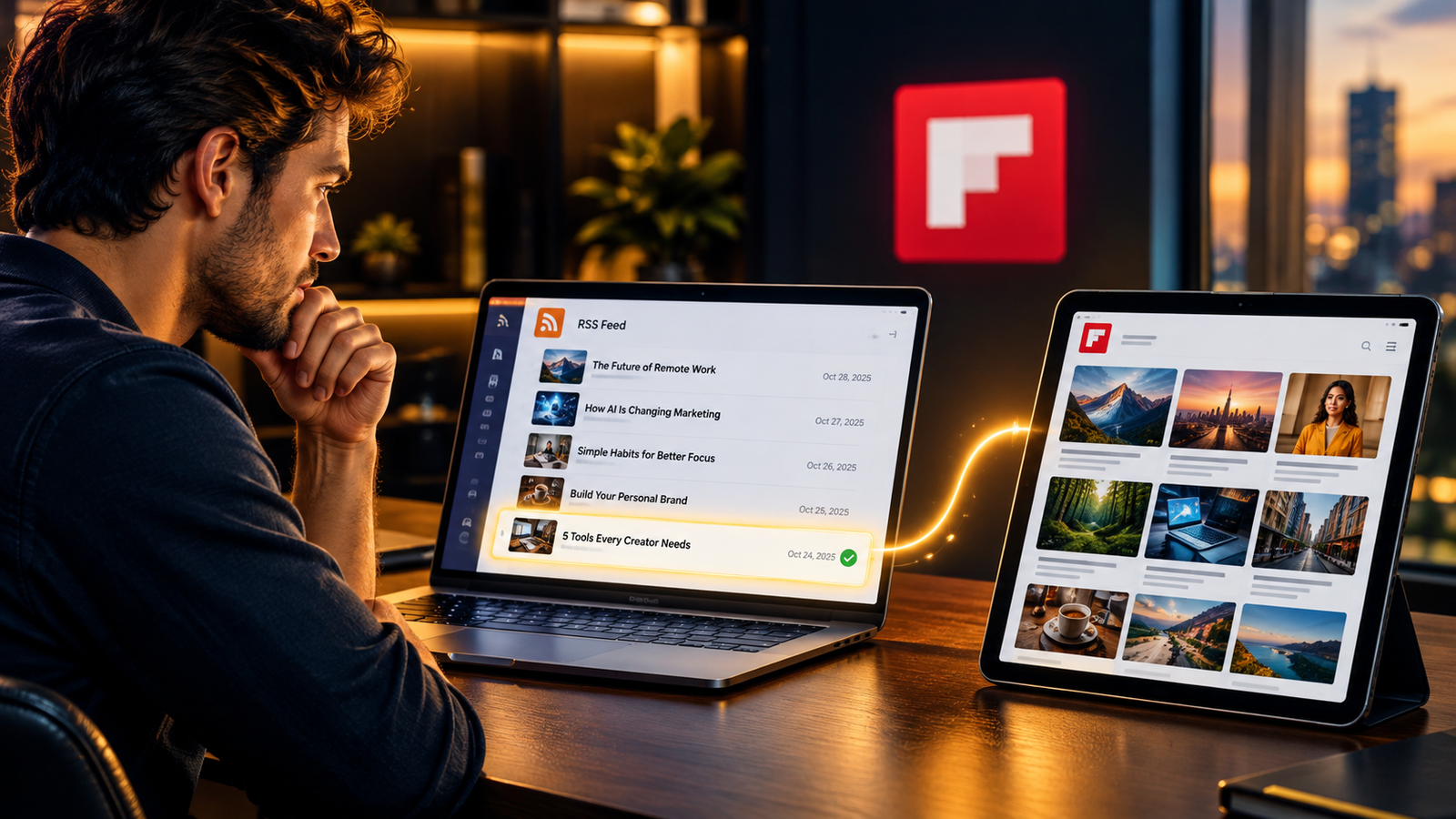
Why Flipboard May Be Ignoring Your Articles: 5 Feed Problems to Check Today
If your Flipboard RSS feed is not showing articles, the feed itself is usually the first thing to check.
Your feed is the path that carries new posts from your website to Flipboard.
When that path has a problem, your stories can go missing.
The cause is often small and easy to fix.
You do not need new topics or a new headline style.
You need a quick look at your feed.
That check can take about 60 seconds.
Let’s walk through it together.
👉Free download : Start a 1-Person Business With Claude AI — Free Quick-Start Guide
Table of Contents
The Quiet Problem Behind Missing Flipboard Articles
Picture a long, busy morning.
You wrote a helpful article and fixed every sentence.
You hit publish and shared it with a hopeful smile.
Then you opened your Flipboard Magazine and saw nothing new.
Your heart sinks a little.
Most writers think the headline failed or the topic was wrong.
Many blame Flipboard itself.
But the real reason is often much simpler.
Think of your RSS feed as a delivery truck.
The truck picks up each new article from your website.
It then drives that article to services like Flipboard.
If the truck has a flat tire, the package never arrives.
The package was fine, and the road was the problem.
Flipboard reads your feed to find your latest articles and learn what they are about.
If the feed is broken, empty or blocked, your content may not show up the way you expect.
This is why a feed check should come before any big change.
Before you rewrite old posts, check the truck.
Before you pick new topics, check the road.
Before you blame the platform, check the pipeline.
A tiny fix here can save you hours of guessing.
It is one of the easiest wins in content distribution.
The Flipboard RSS feed not showing articles problem has a short list of usual suspects, and you can check them one by one.
If you want a full plan that goes beyond the feed, the paid guide below shows how to build a one-person business around the tools you already use.
👉 Get Access to the full Package: Start a 1-Person Business With Claude AI
Step 1: Find Your Website’s RSS Feed
Start by finding the address of your feed.
Every website has a feed address, but the exact link depends on how the site is built.
You can think of it as a front door that only machines use.
Readers walk in through your homepage.
Flipboard walks in through the feed.
Finding the Feed on WordPress
If you use WordPress, your feed is often at your site address followed by /feed/.
For example, it may look like yoursite.com/feed/.
WordPress also has a setting under Settings, then Reading.
That setting controls how many recent posts appear in your feed.
It also lets you pick whether the feed shows full text or a short summary.
Take a look at both settings before you move on.
Many bloggers never open that page.
What You Should See on the Screen
When you open the feed in your browser, picture a plain page of text and tags.
It will not look pretty.
You may see lines of code with titles, links and dates tucked between small brackets.
Do not worry if it looks strange.
It is written for machines, not for people.
Your only job right now is to confirm that the page opens.
If it opens, the front door exists.
Step 2: Open the Feed and Look at Your Recent Articles
Now read the feed with a careful eye.
Ask one simple question.
Can you see your newest articles?
Look at the first few titles.
Check that each title matches the post you wrote.
Click each link to make sure it goes to the right page.
Think of this as checking the labels on a row of boxes.
If a label is wrong, the box ends up in the wrong place.
If your newest article is missing, stop and find out why before you change your whole plan.
The cause may be a caching plugin that is showing an old copy of the feed.
It may be a setting that hides some posts.
It may be a plugin that changed the feed by mistake.
A free tool can help you here.
The W3C Feed Validation Service at validator.w3.org/feed checks a feed and points out errors.
You paste in your feed address, press the button, and read the results.
A clean result is a good sign for your Flipboard RSS feed not showing articles problem.
An error tells you exactly where to look next.
Fixing a missing article at this stage costs you minutes, not days.
Step 3: Check the Article Details Flipboard Likes
Next, look at what sits inside each feed item.
Flipboard’s official RSS guidelines recommend a few useful details.
They ask for helpful descriptions, correct publication dates, working links and article images.
Descriptions, Dates and the 20-Item Rule
Flipboard generally recommends descriptions of at least 300 characters.
That is about two or three short sentences.
A blank or tiny description gives Flipboard little to show your reader.
Flipboard also recommends that your feed contain the 20 most recent items.
If your feed holds only two or three, you may be limiting yourself.
Dates matter too.
A wrong date can make a fresh story look old or odd.
Check that each date matches the day you published.
Pictures That Help Each Story Shine
Imagine a Magazine page with a row of story cards.
Each card has a bright photo on top and a bold title below.
Now picture the same row where every card shows the exact same photo.
The page looks flat and tired, and your stories blur together.
Flipboard says not to reuse the same image for every article.
Give each post its own picture that fits the topic.
A good image makes a reader stop and look.
These details help your stories display properly.
Small things like these often explain why a Flipboard RSS feed is not showing articles in the way a writer hopes.
If you want a ready-made routine for all of this, you can use a written workflow instead of guessing.
👉Get Access to : The Flipboard Traffic Workflow Kit
Step 4: Check for Technical Blocks
Sometimes the feed is fine, but something stands in the way.
Think of a locked gate on the road to your house.
The truck is ready, but it cannot get in.
First, make sure the feed opens without a password.
If a login page appears, Flipboard cannot read your feed.
Second, check that your website and your article links work.
Click a few of them.
A broken link leads nowhere, and a story with no destination is no use to anyone.
Third, look at your robots.txt file.
This small text file tells visitors which parts of your site they may enter.
You can usually see it by typing your site address followed by /robots.txt.
If the feed is not being processed, check whether that file blocks Flipboard’s crawlers.
A single stray line can shut the gate.
If you see a rule that blocks everything, ask your web host or developer to fix it.
Security plugins and some hosting settings can also block outside services by accident.
Unlocking one gate can bring a whole feed back to life.
When you find the block, write it down.
Your future self will thank you.
Step 5: Test One New Article
Now it is time to run a clean test.
Publish one useful article.
Then check whether it appears through your feed.
Do not publish ten posts at once, because that makes the results hard to read.
One post gives you a clear answer.
Flipboard says to allow at least 12 hours after publishing before you look for a new article in your profile.
This is the part that tests most people’s patience.
You may want to check every five minutes.
Try to resist that urge.
Set a reminder, go for a walk, and come back later.
If the article still does not appear after that time, go back to the feed.
Review each step in this list again.
Then read the platform’s own troubleshooting guidance.
This slow and calm approach beats rushing to change everything.
It also shows you which fix actually worked.
When a Flipboard RSS feed is not showing articles, a single clean test usually tells you more than a week of guessing.
One Important Limit: The 90-Day Rule
Here is a detail that surprises many bloggers.
Flipboard’s current guidance says articles more than 90 days old generally will not be accepted through RSS.
That means your feed is not a magic way to push every old post into a Magazine.
Picture a shelf with a small sign that says “new arrivals only.”
Your older posts may sit in the back room and never reach the shelf.
This is not a failure on your part.
It is simply how the system works.
That is why you should understand the limits before you build your workflow around the feed.
If you plan to promote older posts, you may need a different path.
You can flip those stories by hand into your Magazines instead.
The feed is best for fresh posts, and manual flipping fits older ones better.
Why Flipboard Works Best as Part of a Bigger System
A healthy feed is only half the story.
How you flip stories into Magazines also matters.
The Flipboard over-flipping diagnosis in The AI Traffic Vault guide points to a simple habit.
It suggests keeping self-flips to no more than two per article, and flipping about 30 to 50 curated stories a day.
A curated story is one that you choose because it helps your readers.
Think of your Magazine like a small shop window.
If every item in the window is yours, people may walk past.
If the window shows a mix of helpful finds, people stop and browse.
That balance helps your Magazine feel useful instead of pushy.
Putting Feed Checks Into a Weekly Habit
Make the feed check part of your week.
Choose one quiet morning, such as Monday, and open your feed.
Check the newest titles, the dates and the pictures.
Click two or three links.
Run the validator once a month.
Look at your robots.txt after any big site change.
This habit takes about as long as making a cup of tea.
Over time, it can protect all the work you put into your writing.
If you want a full system that covers Flipboard along with Medium, AI search and content workflows, this guide lays it all out.
👉Get Access to : The AI Traffic Vault
The Bigger Lesson About Your Delivery Line
You can spend hours choosing topics and polishing headlines.
You can plan every Magazine with care.
But if the path between your website and Flipboard has a problem, you may be working harder than you need to.
Great writing needs a working road to reach its reader.
Check the delivery line before you blame the content.
That one habit can change how you see your results.
It moves you from guessing to knowing.
It also gives you a clear list to follow when something feels off.
You do not need to be a coder to do it.
You only need to be curious and patient.
Here is a short recap you can keep nearby.
Find your feed address.
Open the feed and check recent titles and links.
Check descriptions, dates, the 20-item count and images.
Look for password blocks and robots.txt rules.
Publish one test article and wait at least 12 hours.
Remember the 90-day limit for older posts.
You can read the official instructions at Flipboard’s RSS guidelines page: https://about.flipboard.com/rss-guidelines/
That page is the best source because it is written by Flipboard itself and can change over time.
Check it once in a while so your plan stays current in 2026.
Your Next Small Step Starts Today
Open your feed right now.
It will take about 60 seconds.
If everything looks clean, you have peace of mind.
If you spot a problem, you have found a fix that may help every future article.
Either way, you win.
Building a steady content system is made of small steps like this one.
If you are just starting out and want simple, ready-to-use prompts to create your first digital product, grab this free pack.
👉Free download : The Claude AI Digital Product Starter Pack — 10 Done-For-You Prompts for Beginners

We strongly recommend that you check out our guide on how to take advantage of AI in today’s passive income economy.